Introduction
In today’s fast-paced digital world, staying organized and maintaining clear communication with your team can be challenging. That’s where Twist, a modern team communication app, comes in. Unlike traditional chat apps that overwhelm you with notifications, Twist prioritizes structured conversations, making collaboration calmer and more productive.
Whether you’re a remote worker, project manager, or part of a growing team, this Twist app tutorial will guide you step by step through its features, tips, and strategies to maximize efficiency.
What is Twist?
Twist is a team collaboration and communication platform designed to reduce noise and improve focus. Unlike apps like Slack that rely on real-time messaging, Twist emphasizes organized threads that allow teams to keep conversations clear and actionable.
Key features include:
- Threaded conversations for organized discussions
- Channels for projects, departments, or topics
- Direct messaging for one-on-one communication
- File sharing and integration with tools like Google Drive and Trello
- Searchable history to find past conversations easily
By centralizing communication in threads, Twist ensures important messages don’t get lost in a flood of notifications.
Getting Started with Twist
Step 1: Creating Your Account
- Visit Twist.com and click Sign Up.
- Enter your work email and create a secure password.
- Verify your email to activate your account.
- Customize your profile by adding a photo and your role.
Tip: Use a recognizable profile picture and professional title to make collaboration easier.
Step 2: Setting Up Your Workspace
- Name your workspace according to your team or project.
- Invite team members via email. Twist allows you to manage permissions and roles, ensuring the right people have access to the right channels.
- Set your timezone and notification preferences to stay updated without distractions.
Step 3: Navigating the Twist Interface
Twist’s interface is clean and intuitive. Key sections include:
- Inbox: Your personal thread feed, showing unread messages and mentions.
- Channels: Organized by team or project, where threaded conversations occur.
- Threads: Individual discussions within a channel.
- Search: Quickly locate threads, files, or messages.
How to Use Twist Effectively
Organizing Threads
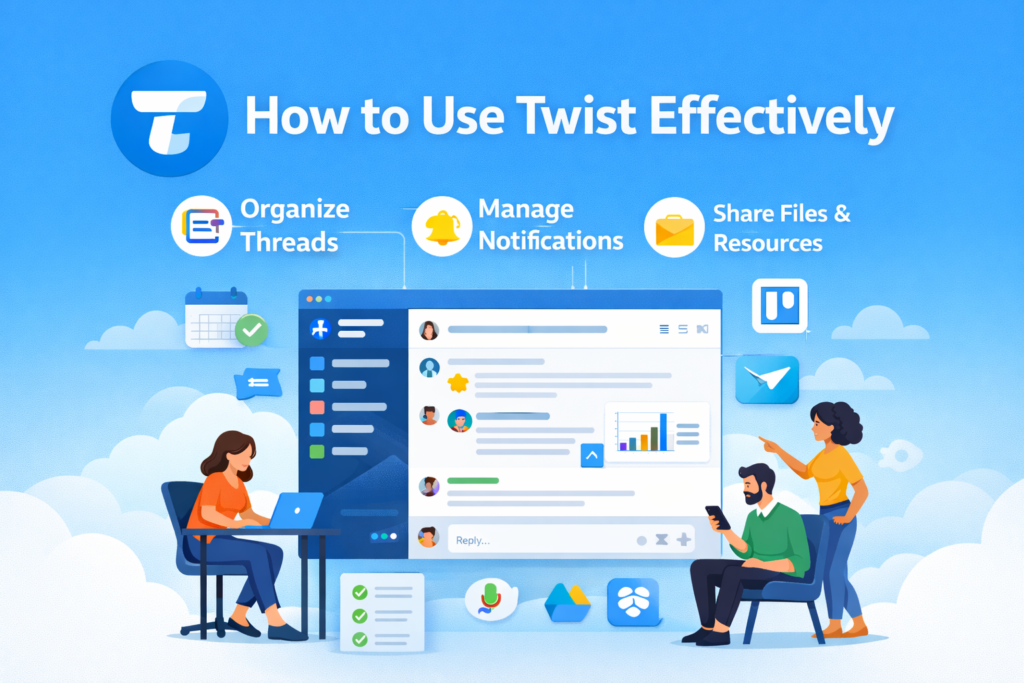
The core of Twist is threaded conversations. Each thread should have:
- A clear title summarizing the topic
- A main post with context or questions
- Replies that add value without derailing the conversation
Example: For a project update, create a thread titled “Website Redesign – Week 3 Progress” and include status, blockers, and next steps in the main post.
Managing Notifications
Twist minimizes interruptions, but managing notifications is key:
- Use Mentions (@username) to alert specific people.
- Customize channel notifications to avoid unnecessary pings.
- Use Inbox filtering to focus on unread or relevant threads first.
Sharing Files and Resources
Efficient teamwork requires easy access to resources. Twist allows:
- Drag-and-drop file sharing in threads
- Integration with Google Drive, Dropbox, and OneDrive
- Adding images, links, and documents directly to relevant conversations
Collaboration Tips for Teams
- Start threads instead of sending multiple messages: Keeps conversations clear and searchable.
- Assign tasks within threads: Mention deadlines and responsible team members.
- Pin important threads: Ensure critical information stays visible.
- Use thread templates: For recurring updates like weekly reports or project status.
Real-life example: A marketing team using Twist reduced email overload by 60%, keeping all campaign discussions in organized threads, improving project completion rates.
Integrations That Enhance Productivity
Twist works seamlessly with popular productivity tools:
- Trello & Asana: Track tasks and update threads automatically.
- Google Calendar: Schedule meetings without leaving Twist.
- Zapier: Automate repetitive workflows and sync data across apps.
These integrations ensure Twist becomes a central hub for communication and project management.
Advanced Twist Features
Pinning Threads
Keep essential information handy by pinning threads in a channel. This ensures quick reference for deadlines, guidelines, or frequently asked questions.
Search and Filter Options
Twist offers powerful search:
- Filter by thread, person, or date
- Use keywords to locate past discussions quickly
- Save frequently used searches for efficiency
Mobile App for Remote Teams
Twist’s mobile app is perfect for remote teams on the go:
- Access all channels and threads
- Receive priority notifications
- Share files and reply to threads from anywhere
Benefits of Using Twist
- Reduced distractions: Threads replace endless chat messages.
- Improved focus: Teams can prioritize important discussions.
- Better organization: Channels and threads keep conversations structured.
- Enhanced collaboration: Teams stay connected without the noise of instant messaging apps.
Data shows teams using structured communication platforms like Twist report a 30% improvement in project completion times due to reduced miscommunication.
Conclusion
Twist is more than just a messaging app it’s a tool designed for organized, efficient, and stress-free team communication. By mastering threads, notifications, integrations, and advanced features, your team can achieve better collaboration and productivity.
Start your journey with Twist today and experience a calmer, more organized way to communicate. Streamline your team’s workflow, reduce distractions, and focus on what truly matters.
Call to Action: Sign up for Twist now and transform how your team communicates and collaborates.
FAQs
1. Is Twist free to use?
Yes, Twist offers a free plan with core features suitable for small teams. Paid plans provide additional storage and advanced integrations.
2. Can Twist replace email for teams?
For internal team communication, Twist can significantly reduce reliance on email, keeping discussions in organized threads.
3. Does Twist support integrations with other apps?
Yes, Twist integrates with Google Drive, Trello, Asana, and more, enhancing productivity.
4. Can I use Twist on mobile?
Absolutely. Twist has fully functional apps for iOS and Android.
5. How does Twist improve team focus?
By organizing conversations in threads and reducing real-time chat noise, teams can focus on tasks without distractions.