

Introduction
Managing multiple computers in an organization can be overwhelming without the right tools. IT administrators often struggle with software deployment, patch management, and system monitoring across networks. This is where pdq tool tutorial come in. Designed to simplify IT management, PDQ Deploy and PDQ Inventory help professionals automate tasks, save time, and maintain consistent system performance. In this tutorial, we’ll guide you through using PDQ tools efficiently, share practical tips, and help you get the most out of this powerful software.
What Are PDQ Tools?
PDQ tools are a suite of system management applications designed for IT administrators to manage Windows-based computers across a network. The two main tools are:
- PDQ Deploy: Automates software deployment and updates across multiple machines.
- PDQ Inventory: Tracks software, hardware, and system configurations, allowing administrators to identify vulnerabilities and maintain compliance.
Together, these tools enable IT teams to work efficiently, reduce manual tasks, and improve overall network health.
Why Use PDQ Tools?
Before diving into the tutorial, it’s important to understand the benefits of PDQ tools:
- Time-Saving Automation: Automate repetitive tasks like software installation and updates.
- Centralized Management: Monitor and manage all systems from a single console.
- Enhanced Security: Keep systems up to date with patch management and compliance reporting.
- Custom Reporting: Generate reports on software versions, hardware inventory, and network health.
- Scalability: Ideal for small businesses to enterprise networks.
Getting Started with PDQ Tools
Installing PDQ Deploy and PDQ Inventory
- Visit the official PDQ website and download the latest versions of PDQ Deploy and PDQ Inventory.
- Run the installer and follow the on-screen instructions. Both tools can be installed on the same server or administrator workstation.
- After installation, launch the applications and configure basic settings, such as network credentials and database location.
Tip: Use a dedicated admin account for installations to avoid permission issues.
Setting Up PDQ Inventory
PDQ Inventory allows you to collect detailed information about every computer on your network.
- Scan Profiles: Create scan profiles to track specific hardware, software, or system configurations.
- Custom Collections: Organize computers into dynamic collections based on attributes like OS version, installed software, or last scan date.
- Reports: Generate ready-to-use or custom reports to identify outdated software, low disk space, or security risks.
Example: You can create a collection for all computers missing a critical security update and then deploy the update using PDQ Deploy.
Using PDQ Deploy
PDQ Deploy is designed for automated software distribution. Here’s how to get started:
- Add Packages: Packages are pre-configured software installers. PDQ Deploy provides a library of ready-made packages, or you can create custom ones.
- Target Computers: Select computers or collections from PDQ Inventory to receive the deployment.
- Schedule Deployments: Run deployments immediately or schedule them during off-hours to minimize user disruption.
- Monitor Status: Track deployment success, failures, and retry options from the console.
Practical Tip: Test deployments on a small group before rolling them out organization-wide to avoid potential errors.
Advanced Features
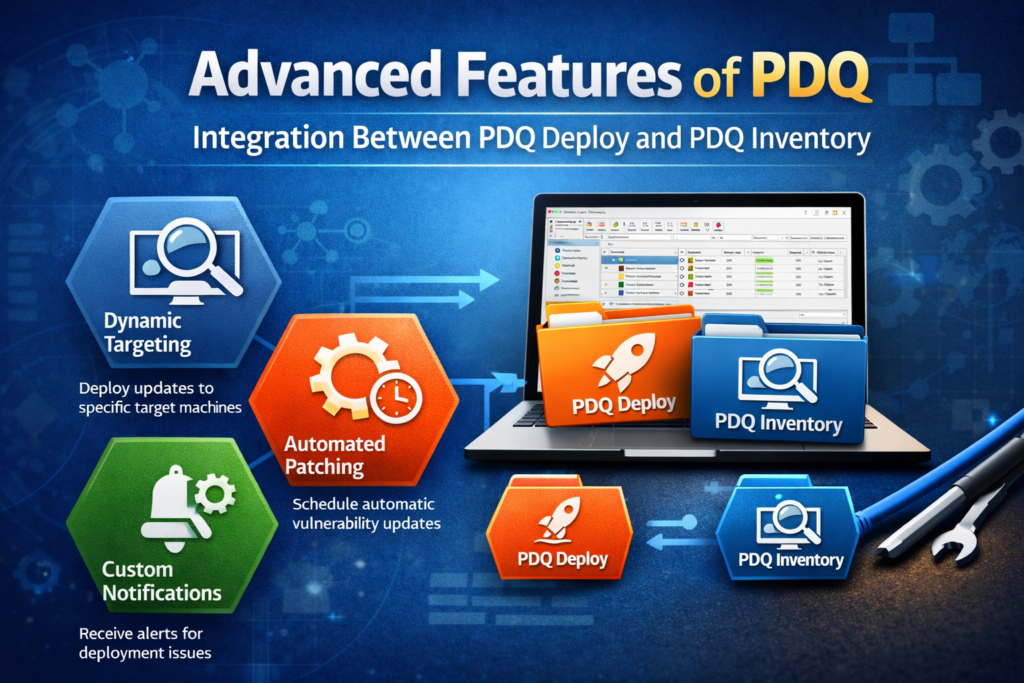
Integration Between PDQ Deploy and Inventory
- Dynamic Targeting: Use PDQ Inventory collections as deployment targets in PDQ Deploy. This ensures updates go to only the machines that need them.
- Automated Patching: Schedule regular scans in Inventory and trigger deployments automatically when vulnerabilities are detected.
- Custom Notifications: Configure alerts to notify IT staff of deployment issues or failed scans.
Automation and Scheduling
PDQ tools allow IT teams to fully automate software updates and system audits. Key scheduling features include:
- Recurring Scans: Ensure your inventory is always up-to-date without manual intervention.
- Maintenance Windows: Schedule updates during off-peak hours to avoid disrupting work.
- Conditional Deployments: Deploy updates only if a system meets specific criteria, such as OS version or free disk space.
Best Practices for Using PDQ Tools
- Maintain Updated Packages: Regularly update PDQ Deploy packages to ensure compatibility and security.
- Leverage Collections: Organize computers into meaningful collections for targeted deployments.
- Monitor Logs: Review deployment logs to identify failures and optimize future processes.
- Test Before Deployment: Always test critical updates on a small subset of systems.
- Secure Admin Credentials: Use strong credentials and manage permissions carefully to prevent unauthorized access.
Real-Life Example: A mid-sized company used PDQ Deploy to roll out Windows updates to 200+ computers in less than 30 minutes, reducing manual patching time from hours to minutes.
Common Issues and Troubleshooting
Even with a robust tool like PDQ, you may encounter challenges:
- Deployment Failures: Check network connectivity, administrative permissions, and installer compatibility.
- Scan Errors in Inventory: Ensure target machines are online and accessible.
- Package Updates Not Applying: Confirm package configurations and dependencies before deploying.
Proactively monitoring logs and testing packages can prevent most common issues.
Tips for Maximizing Efficiency
- Combine Tools: Use PDQ Inventory and Deploy together for automated patch management.
- Use Pre-Built Packages: Save time with PDQ’s library of software packages.
- Customize Reports: Tailor reports to your organization’s compliance and operational needs.
- Train Your Team: Ensure IT staff are familiar with features, shortcuts, and automation workflows.
Conclusion
PDQ tools are essential for IT administrators looking to streamline software deployment, manage inventories, and enhance network security. By automating tasks and providing detailed system insights, these tools save time, reduce errors, and improve overall efficiency. Implementing PDQ Deploy and Inventory strategically can transform your IT management from reactive to proactive.
Take control of your network today, download PDQ tools, set up your first scan and deployment, and experience the difference in efficiency and security.
FAQs
Q1: What is the difference between PDQ Deploy and PDQ Inventory?
PDQ Deploy automates software deployment, while PDQ Inventory tracks system configurations and software installed on each computer.
Q2: Can PDQ tools be used on non-Windows systems?
No, PDQ tools are designed specifically for Windows-based networks.
Q3: Are there pre-built packages available in PDQ Deploy?
Yes, PDQ offers a library of ready-made packages for common applications like Chrome, Adobe Reader, and security patches.
Q4: Can PDQ tools automate patch management?
Yes, by integrating PDQ Inventory and Deploy, you can schedule scans and automated updates for missing patches.
Q5: Is PDQ suitable for small businesses?
Absolutely. PDQ tools scale from small networks to large enterprises, making them versatile for organizations of any size.